
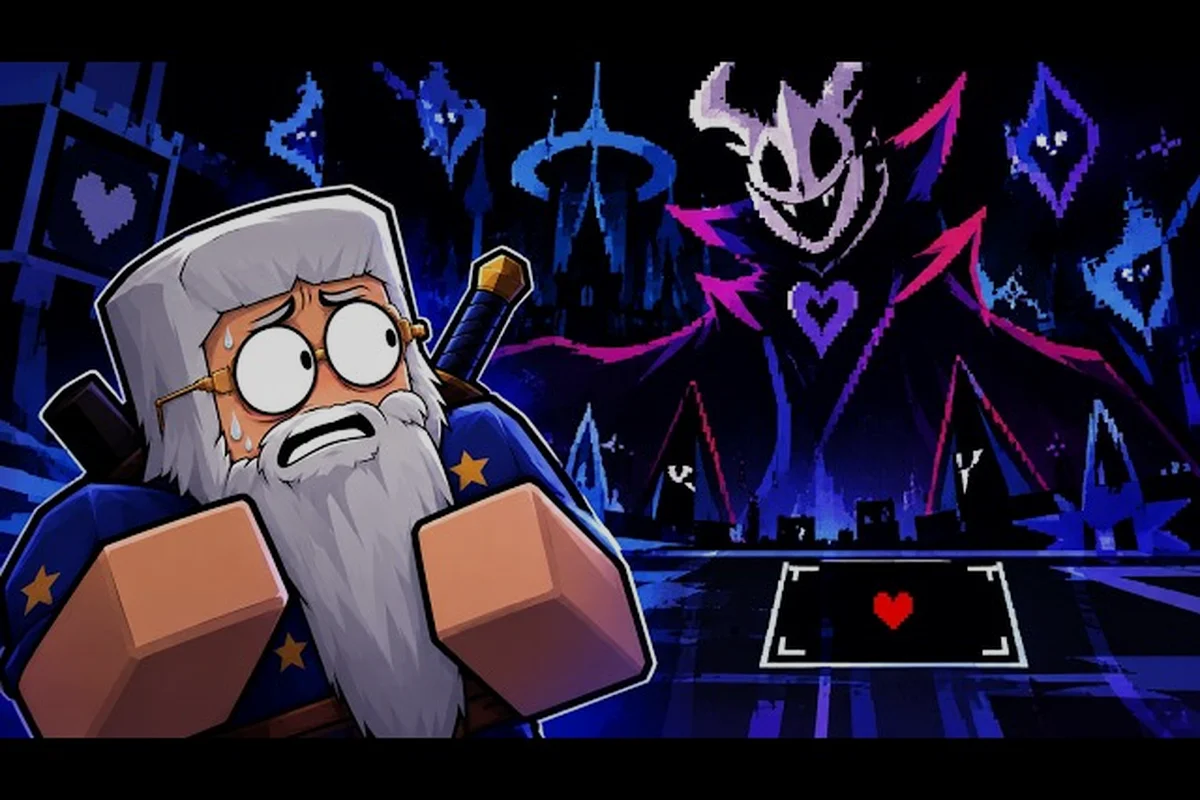
A smooth fight in DELTARUNE Fight depends on stable frames and responsive inputs, because the bullet-hell phases punish every dropped input and stutter. These DELTARUNE Fight performance tips focus on practical fixes for lag, control remapping, pause menu quirks, and save integrity, so you can focus on reading boss patterns instead of fighting the client. The confirmed line-up so far includes Tenna, King, Pink, and Kaizo Knight, and each one demands clean reactions during high-pressure windows.
Understanding Performance Bottlenecks in DELTARUNE Fight
Performance problems in this Roblox experience rarely come from a single cause. Instead, they stack up from server load, client settings, background apps, and how the game handles bullet-phase rendering. According to community videos, the most demanding moments happen when the Soul cursor is weaving through dense attack patterns while other players are still connected to the same server.
The official Roblox page lists a maximum of 15 players per server, which means a crowded lobby can introduce input delay even before a boss fight begins. Players report that the worst stutters appear during Brutal and Genocide difficulty runs, because those tiers layer more projectiles and faster pattern shifts on screen at once. Reducing visual clutter before those fights gives you a measurable edge.
| Bottleneck Source | What It Feels Like | Which Habit Helps |
|---|---|---|
| Crowded server | Delayed inputs, rubber-banding | Join a quieter server or wait for lobby turnover |
| High graphics settings | Frame drops during bullet phases | Lower graphics quality before boss attempts |
| Background downloads | Sudden freezes mid-dodge | Pause downloads and close heavy apps |
| Long session uptime | Gradual slowdown over time | Restart the client between long grinding sessions |
| Unstable connection | Teleporting projectiles, missed inputs | Use a wired connection or move closer to the router |
These bottlenecks are not unique to DELTARUNE Fight, but the game's reliance on precise Soul movement makes them more punishing than in slower Roblox titles. A single dropped frame during a Kaizo Knight swing can end a run that took several minutes to set up.
How the Bullet Phases Expose Weak Hardware
The bullet phases are the real performance test, because they force the client to track many moving objects while still reading your keyboard or touch input. Community video capture from MrSukee shows that even modest setups can hold steady during the early Standard fights, but the later encounters push the same hardware much harder.
When the Soul is navigating a wide, high-damage swing, the client has to resolve collision checks, particle effects, and input polling in the same frame. If any of those tasks falls behind, the result is a hit that feels unfair. Players who reduce lag consistently report that they can react to telegraphed attacks earlier, which matters most on the hardest tier.
Reducing Lag Without Sacrificing Visual Clarity
You do not need to turn the game into a blurry mess to get stable frames. The goal is to remove the specific effects that cost the most performance while keeping boss tells readable. According to community testing, the biggest wins come from lowering shadow quality, disabling extra particles, and reducing the render distance when the fight arena is small.
Roblox exposes these options through the in-client settings menu, but many players overlook them because the defaults look fine in the lobby. The lobby is not the stress test; the boss arena is. If you only adjust settings after a death, you have already lost the cleanest attempt.
| Setting to Lower | Why It Helps | What You Keep |
|---|---|---|
| Shadow quality | Frees frame budget during dense projectile waves | Boss silhouettes remain visible |
| Particle effects | Reduces visual noise during Rude Buster moments | Attack telegraphs stay clear |
| Render distance | Cuts off-screen object tracking | Arena boundaries remain obvious |
| Texture quality | Lowers memory pressure on older devices | Character and boss shapes stay recognizable |
| Anti-aliasing | Reduces GPU load without hiding patterns | Smooth edges matter less than readable hitboxes |
These changes are especially useful before Genocide attempts, where the margin for error is thinnest. Players report that a stable frame rate matters more than pretty shadows when the Soul has to thread a narrow gap between projectiles.
When to Restart the Client
A long session gradually eats into available memory, and the effect is worse on mobile devices. If your inputs start to feel slightly delayed after an hour of attempts, a full client restart often clears the issue. This is a simple fix that costs a minute and prevents a frustrating death later.
The same logic applies after major updates. As of the September 2026 build, players have reported occasional stutter after patches, and a clean restart helps the client rebuild its cache. If you are planning a long Brutal run, restarting beforehand is a low-cost insurance policy.
Remapping Controls for Faster Reactions
The default control scheme works, but it is not optimized for every hand size or playstyle. DELTARUNE Fight uses Z to confirm, X to go back, and C for the context-dependent action, which leaves the movement keys to handle the Soul positioning. Remapping controls can reduce the distance your fingers travel during tense sequences.
Players who struggle with the default layout often move the confirm action to a mouse button or a more comfortable key. Because the game does not publish an official remapping guide, the community has settled on a few common patterns that work across keyboard and mobile setups.
| Control Action | Default Input | Common Remap | Why Players Change It |
|---|---|---|---|
| Confirm | Z | Space or left mouse | Faster thumb access during menus |
| Go back | X | Right mouse or Esc | Avoids accidental confirms |
| Context action | C | Shift or side button | Keeps movement fingers free |
| Movement | Arrow keys or WASD | ESDF | Opens nearby keys for actions |
| Pause | Esc | P or Tab | Prevents menu misclicks mid-fight |
The best remap is the one you can hit without looking down. If you have to glance at the keyboard during a Pink fight, the layout is working against you. Test changes in Standard difficulty before taking them into Brutal or Genocide runs.
Mobile Control Adjustments
Mobile players face a different challenge, because touch controls cover part of the screen and can block your view of incoming projectiles. Community reports suggest that shrinking the on-screen buttons and moving them toward the edges opens up the center of the screen where the Soul spends most of its time.
The exact layout depends on your device size, but the principle is the same: keep the action buttons reachable without covering the bullet patterns. Some players also enable a simplified touch layout when available, which reduces accidental taps during high-pressure phases.
Fixing the Pause Menu and Protecting Save Progress
The pause menu is supposed to be a safe place to breathe, but players have reported moments where the menu does not respond the way they expect. Because this game has no chapter structure and no story route flags saved to a slot, the pause behavior is simpler than in the original Deltarune, yet it still trips up new players.
When you need to pause during a fight, the key is to stop moving before opening the menu. Opening the pause screen while the Soul is still drifting can cause the menu to feel unresponsive, because the client is still processing movement input. A clean stop before pausing avoids most of the reported issues.
| Save-Related Habit | Why It Matters | What to Avoid |
|---|---|---|
| Pause only when stationary | Prevents menu input conflicts | Pausing mid-dodge |
| Confirm save prompts carefully | Avoids accidental overwrites | Spamming confirm during lag |
| Restart after long sessions | Clears memory-related save glitches | Trusting a stuttering client |
| Check settings after updates | Patches can reset preferences | Assuming old settings persist |
| Use a stable connection | Reduces save sync failures | Saving during a disconnect spike |
Save progress in this Roblox experience is tied to your account, not to a local file, which means connection quality matters. If the client loses sync during a save, the game may not record your latest progress, so a stable connection is part of any serious performance plan.
What the Pause Menu Can and Cannot Do
The pause menu gives you access to settings and basic options, but it does not pause the server for everyone. Other players in the same lobby continue their own fights, which is why the pause screen feels different from a single-player game. Understanding this prevents the false expectation that pausing freezes the whole session.
Players who treat the pause menu as a quick settings shortcut, rather than a true time-out, get more value from it. If you need to adjust graphics or remap a key mid-session, the pause menu is the right place, but do not expect it to stop an incoming attack that has already been telegraphed.
Building a Performance Routine for Harder Fights
The hardest fights reward preparation as much as reflexes. A consistent pre-fight routine removes the variables that cause lag and input errors, which leaves you free to focus on the boss patterns. According to community videos, the players who clear Kaizo Knight consistently are the ones who treat performance setup as part of the strategy.
Before a Brutal or Genocide attempt, run through a short checklist. Close background apps, confirm your graphics settings, restart the client if the session is long, and test your remapped controls in a Standard fight. This takes a few minutes and prevents most of the deaths that feel unfair.
| Pre-Fight Step | Purpose | When to Skip |
|---|---|---|
| Restart the client | Clears memory buildup | Only if you just launched |
| Lower graphics settings | Stabilizes frame rate | If already on minimum |
| Test remapped keys | Confirms muscle memory | If layout is unchanged |
| Check connection stability | Prevents save and input issues | If on a wired connection |
| Join a quieter server | Reduces server-side delay | If the lobby is already small |
This routine pairs well with the broader advice in the DELTARUNE Fight pro tips guide, which covers fight-specific strategies for the confirmed bosses. Performance setup and fight knowledge work together, because a stable client makes every pattern easier to learn.
Adjusting for Mobile and Low-End Devices
Mobile and low-end devices need a slightly different routine, because they hit performance limits sooner. On these setups, the priority is to reduce everything that competes for memory and GPU time. Close all other apps, lower the resolution if the option exists, and avoid playing while the device is charging if it tends to heat up.
Heat is an underrated performance killer. A warm device throttles the processor, which causes exactly the kind of stutter that ruins a Genocide attempt. Playing in a cooler room or removing a thick case can help more than any in-game setting.
Frequently Asked Questions
How do I reduce lag in DELTARUNE Fight?
Lower shadow quality, particle effects, and render distance in the Roblox settings menu before entering boss fights. Restart the client after long sessions, close background apps, and join a quieter server. These changes stabilize frame rates during dense bullet phases without hiding boss telegraphs.
Can I remap the controls in DELTARUNE Fight?
Yes, you can adjust the keyboard layout to fit your hands. The default uses Z to confirm, X to go back, and C for the context-dependent action, but many players remap confirm to Space or a mouse button. Test new layouts in Standard difficulty before attempting harder tiers.
How do I pause the game safely?
Stop moving the Soul before opening the pause menu, because pausing while drifting can cause input conflicts. The pause menu does not freeze the server for other players, so treat it as a settings shortcut rather than a true time-out during a fight.
Will my save progress be protected if I change settings?
Save progress is tied to your account, so changing graphics or control settings does not erase it. However, a stable connection matters, because a disconnect during a save sync can prevent the latest progress from recording. Restart the client after long sessions to avoid memory-related save glitches.
What should I do before a Genocide difficulty attempt?
Run a short pre-fight routine: restart the client, lower graphics settings, test remapped keys, check your connection, and join a quieter server. This removes the common performance variables that cause unfair deaths during the hardest fights, as reported by players in the September 2026 build.